
其实目前来说,live2d-widget相关生态已经非常完善了,只需要一行代码就能一键部署,但是这种方法局限性太大,没有自定义的空间,本着折腾到底的开发者原则为了我的然然,基于上述框架和letere大佬的研究,进行了项目的重新本地部署和完全自定义。
1 引入和更换模型
- 当前比较热门的live2d平台live2DViewerEX导出格式是lpk的,为了转换成现有组件能识别的moc/moc3文件,我们使用这位大佬的工具进行格式转换
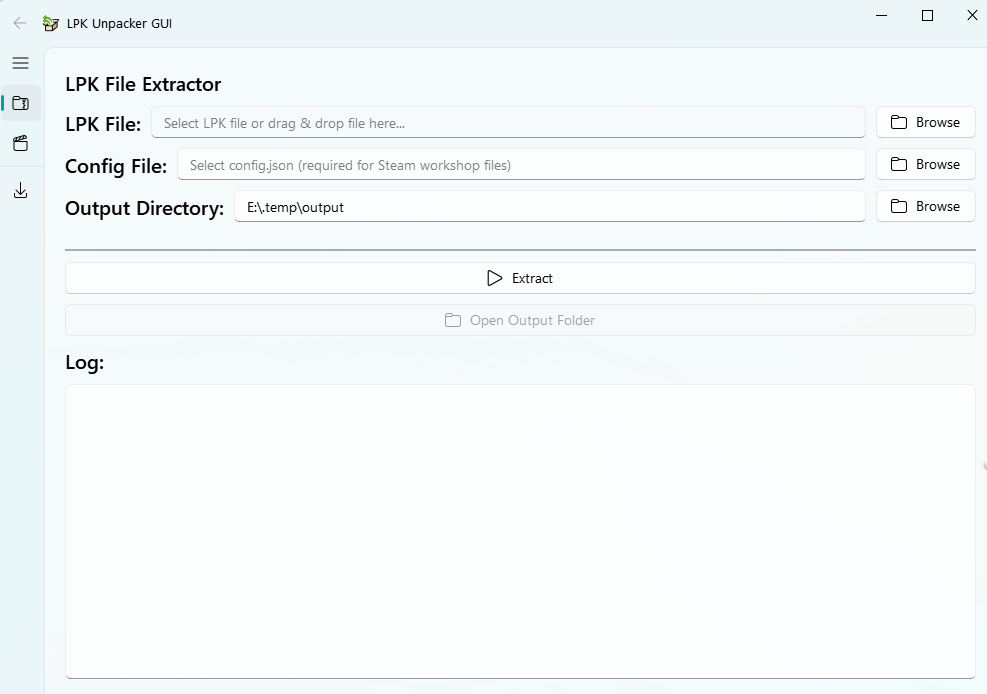
- 克隆仓库到本地,把刚才获得的模型导入Resources/model文件夹下,更改model.json文件为xxx.model3.json(因为组件是这么识别的),更改里面的Motions(组件限制,Motions下只有"Idle"和 "TapBody"可以正常触发,所以尽可能把动作都移到这这两个里面),同一标签下有多个动作时触发会随机挑一个动作播放。
- 把其他模型目录下的config.json文件拷一份到你的模型目录下,里面可以修改缩放和位移。
- 在Resources下的model_list.json里添加模型名字和入场语。
2 远程或者本地调用
调用模型有两种方法,不想吃服务器资源可以牺牲一些加载速度用远程。这里先介绍远程调用。
- 上传并发布release版本,注意发布版本的标签很重要,因为我们要借助cdn进行远程调用,发布完后可以直接手动拼接 https://cdn.jsdelivr.net/gh/和 用户名/仓库名@版本号,也可以直接用jsdelivr官方的工具https://www.jsdelivr.com/github
- 如果是typecho框架可以进入typecho后台,在自定义body标签末尾位置把下面代码引进去,当然通用方法是直接修改主题的.php文件,注意把 const cdnPath改成刚才构建的地址
<script>
  const cdnPath = "https://cdn.jsdelivr.net/gh/..,";
  const config = {
    // 资源路径
    path: {
      homePath: "/",
      modelPath: cdnPath + "/Resources/",
      cssPath: cdnPath + "/waifu.css",
      tipsJsonPath: cdnPath + "/waifu-tips.json",
      tipsJsPath: cdnPath + "/waifu-tips.js",
      live2dCorePath: cdnPath + "/Core/live2dcubismcore.js",
      live2dSdkPath: cdnPath + "/live2d-sdk.js"
    },
    // 工具栏
    tools: ["hitokoto", "asteroids", "express", "switch-model", "switch-texture", "photo", "info", "quit"],
    // 模型拖拽
    drag: {
      enable: true,
      direction: ["x", "y"]
    },
    // 模型切换(order: 顺序切换,random: 随机切换)
    switchType: "order"
  }

  // 加载资源并初始化
  if (screen.width >= 768) {
    Promise.all([
      loadExternalResource(config.path.cssPath, "css"),
      loadExternalResource(config.path.live2dCorePath, "js"),
      loadExternalResource(config.path.live2dSdkPath, "js"),
      loadExternalResource(config.path.tipsJsPath, "js")
    ]).then(() => {
      initWidget({
        waifuPath: config.path.tipsJsonPath,
        cdnPath: config.path.modelPath,
        tools: config.tools,
        dragEnable: config.drag.enable,
        dragDirection: config.drag.direction,
        switchType: config.switchType
      });
    });
  }

  // 异步加载资源
  function loadExternalResource(url, type) {
    return new Promise((resolve, reject) => {
      let tag;
      if (type === "css") {
        tag = document.createElement("link");
        tag.rel = "stylesheet";
        tag.href = url;
      }
      else if (type === "js") {
        tag = document.createElement("script");
        tag.src = url;
      }
      if (tag) {
        tag.onload = () => resolve(url);
        tag.onerror = () => reject(url);
        document.head.appendChild(tag);
      }
    });
  }
</script>
- 回到网页ctrl+F5强制刷新,此时新模型应该可以大致显示了,比例或者相对位置不合适去改config.json里的scale和x,y。
{
  "scale": 1,
  "translate": {
    "x": 0,
    "y": 0
  }
}
这里再提一下本地调用,其实大同小异,把资源文件夹放在服务器主题目录下,然后直接修改cdnPath。
const localBaseUrl = "https://.../live2d";3 鼠标跟随灵敏度的修正
刚设定好位置和大小的模型难免会有看板娘视角跟随鼠标的灵敏度过高或者过低的问题,这也是笔者遇到的最棘手的问题,因为实在是前端经验匮乏,好在最后还是折腾透了
- 首先查找模型文件xxx.model3.json里面有没有mouseTracking的相关设定,如下:
"MouseTracking": {
      "SmoothTime": 1.0,
      "Items": [
        {
          "Id": "ParamBodyAngleX",
          "Min": -10.0,
          "Max": 10.0,
          "DefaultValue": 0.0,
          "Weight": 0.35,
          "BlendMode": 1,
          "Input": 1
        },
        {
          "Id": "ParamAngleX",
          "Min": -10.0,
          "Max": 10.0,
          "DefaultValue": 0.0,
          "Weight": 0.35,
          "BlendMode": 1,
          "Input": 1
        },
        {
          "Id": "ParamBodyAngleZ",
          "Min": -10.0,
          "Max": 10.0,
          "DefaultValue": 0.0,
          "Weight": 0.30,
          "BlendMode": 1,
          "Input": 1
        },
        {
          "Id": "ParamBodyAngleY",
          "Min": -10.0,
          "Max": 10.0,
          "DefaultValue": 0.0,
          "Weight": 0.35,
          "BlendMode": 1,
          "Axis": 1,
          "Input": 2
        },
        {
          "Id": "ParamAngleY",
          "Min": -10.0,
          "Max": 10.0,
          "DefaultValue": 0.0,
          "Weight": 0.35,
          "BlendMode": 1,
          "Axis": 1,
          "Input": 2
        }
如果有的话,适当增大SmoothTime,将ParamAngleX,ParamAngleY的min和max适当调小。
- 在目录Demo/src/sdk-v5下找到文件lappmodel.ts,这里面有一个很关键的类onTouchesMoved,实际上这是鼠标事件的最终参数写入部分,我们定义一个 const sensitivity,并把viewX 和viewY乘上这个系数。
public onTouchesMoved(pointX: number, pointY: number): void {
    const viewX: number = this.transformViewX(this._touchManager.getX());
    const viewY: number = this.transformViewY(this._touchManager.getY());

    this._touchManager.touchesMoved(
      pointX * window.devicePixelRatio,
      pointY * window.devicePixelRatio
    );

    const live2DManager: LAppLive2DManager = LAppLive2DManager.getInstance();
    // live2DManager.onDrag(viewX, viewY);
    const sensitivity = 0.35;
    live2DManager.onDrag(viewX * sensitivity, viewY * sensitivity);
}- 因为我们改动了TypeScript 源代码,我们必须重新打包项目,在终端执行node -v检查是否安装了node.js,然后在项目内安装依赖:npm install,接着执行npm run build构建项目,此时我们可以npm run serve在本地服务器上观察效果是否满意,如果可以的话,用目录新生成目录dist/assets下的两个打包好的.js文件更换掉和Demo同级的.js文件,再进行仓库和发布版本的更新。
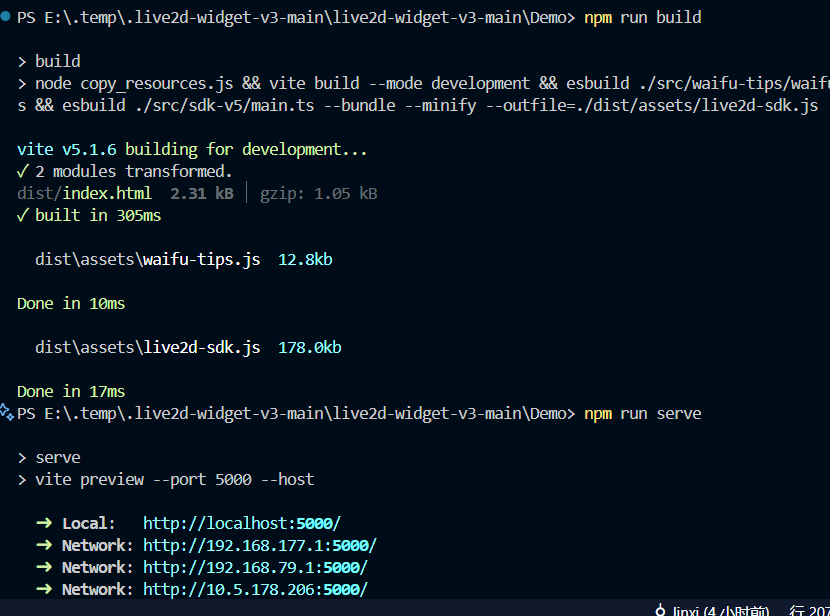
原理:live2d-sdk.js 是什么?
它是打包后的成品(bundle/minified)
由 src/sdk-v5/main.ts 等 TypeScript 源代码编译而来
包含所有依赖和逻辑的单一文件
原理:为什么打包完不能直接更新仓库? .gitignore 文件中被忽略了。项目中有一个 .gitignore 文件,它会阻止这些构建文件和依赖被提交到 GitHub
做完上面这些,跟随灵敏度的问题大概就解决了!
4 自定义微调
调整css和提示语
在waifu.css中调整left,line-height等可以更改看板娘绝对位置。对话可以通过更改waifu-tips.json来实现。
- 工具栏,模型拖拽,模型切换逻辑
这些可以在我们最初在typecho后台加到自定义body标签末尾的脚本里设置
最后,我永远喜欢然然!